Spotify Canvas Size & Specs (2026): Dimensions, Length and Format
Spotify Canvas size, length and file type in Spotify's own words, plus the safe area, loop types, tested export settings and fixes for a Canvas that won't show.
Contents12 sections
- Spotify Canvas size: the short answer
- Every Canvas spec, in Spotify's words
- 720 × 1280 or 1080 × 1920?
- Design for the Now Playing screen
- Three ways to make it loop
- Export settings that meet the spec
- What a Canvas cannot show
- How to add a Canvas to your track
- Canvas not showing, or the upload failed?
- Is a Canvas worth the effort?
- Making Canvas loops with Vidyo
- Related reading
You have the song, the artwork and a release date, and Spotify for Artists is asking for a Canvas. Get one number wrong and the upload bounces: Spotify's own help page says it can fail if "the length or size is even slightly off". This guide puts every Canvas requirement in one place, in Spotify's words, with export settings we ran and measured before writing them down.
Spotify Canvas size: the short answer
A Spotify Canvas is the short looping visual that replaces your cover art in the Now Playing view of the Spotify mobile app. In Spotify's words, it is "a 3–8 second vertical loop", and you can add one "to any track, including upcoming releases".
| If you want… | Export this |
|---|---|
| A moving loop | 720 × 1280 or 1080 × 1920 MP4, H.264, 30 fps, exactly 8.0 seconds, no audio |
| A still image | 720 × 1280 or 1080 × 1920 JPG |
| The safest size | 720 × 1280, the size Spotify's own example Canvases stream at |
| To check it plays | The Spotify mobile app on a phone. Canvas does not show on desktop |
Every Canvas spec, in Spotify's words
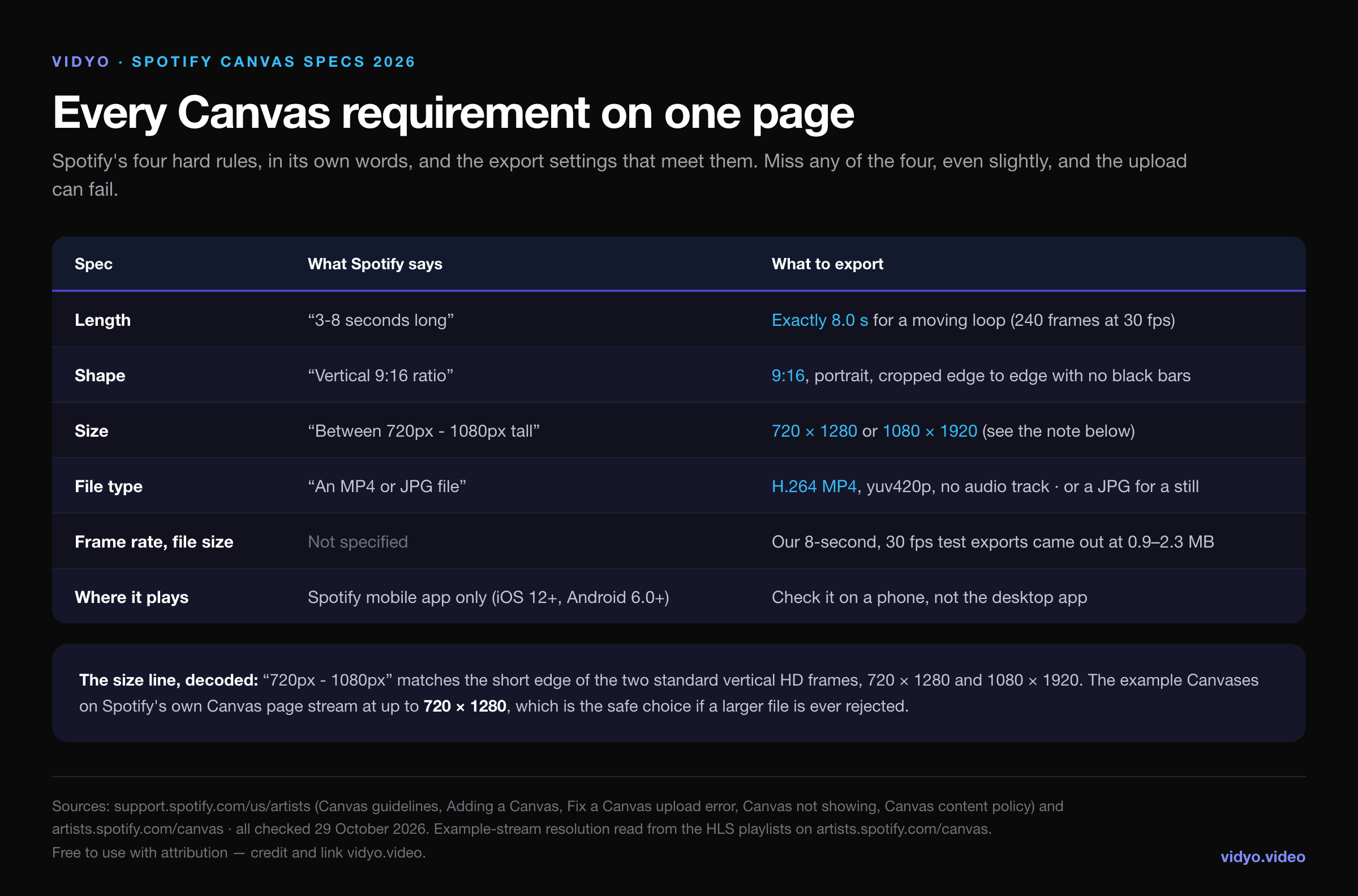
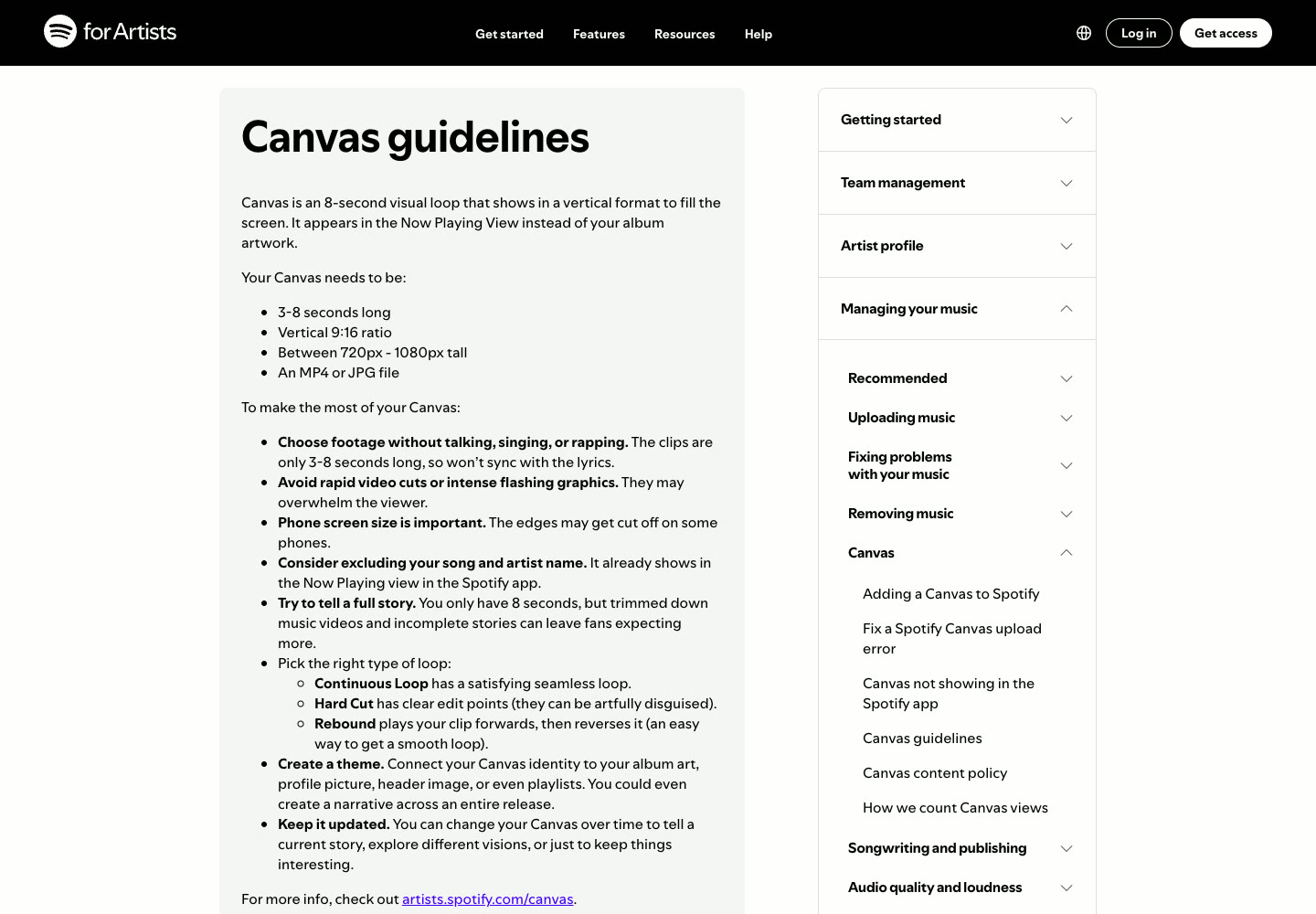
Spotify's Canvas guidelines list four requirements. Its upload-error page repeats them word for word and adds the warning that matters most: if any of them is "even slightly off", the upload can fail.
| Requirement | Spotify says | What it means for your file |
|---|---|---|
| Length | "3-8 seconds long" | Trim to a whole number of frames inside the window. 8.0 seconds at 30 fps is 240 frames |
| Aspect ratio | "Vertical 9:16 ratio" | Portrait, filled edge to edge. Letterboxing a 16:9 clip into a 9:16 frame technically fits, but looks like a mistake |
| Size | "Between 720px - 1080px tall" | See the next section. In practice, 720 × 1280 or 1080 × 1920 |
| File type | "An MP4 or JPG file" | H.264 MP4 for motion, JPG for a still. No MOV, GIF or WebM |
Spotify publishes no frame-rate or file-size limit, so we will not invent one. Our test exports at 30 fps and high quality came out between 0.9 and 2.3 MB for 8 seconds, which is small for any upload form.
720 × 1280 or 1080 × 1920?
This is the line that confuses people. Spotify says a Canvas should be "between 720px - 1080px tall", and that wording has not changed since at least August 2022. We compared Wayback Machine copies of the guideline page from August 2022, July 2023 and January 2025 against today's, and all four match.
Read literally, "1080px tall" would cap the height, which for a 9:16 frame means 608 × 1080. But 720 and 1080 are exactly the widths of the two standard vertical HD frames, 720 × 1280 and 1080 × 1920, and those are the sizes Canvas guides and editing templates use.
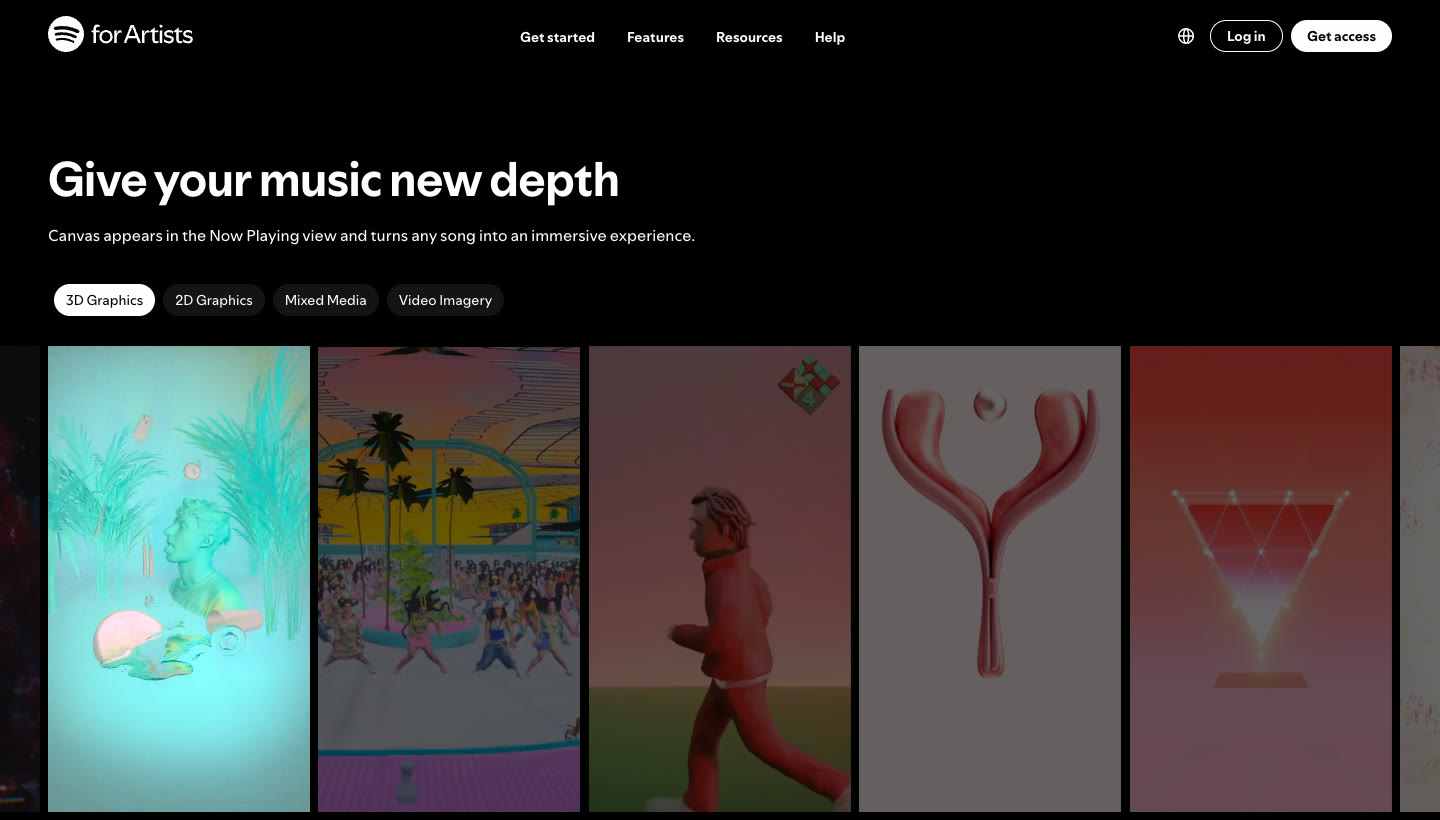
For a tie-breaker, we looked at what Spotify itself serves. The example Canvases on Spotify's own Canvas page stream as adaptive video, and the playlists list every size available. Of the six we checked on 29 October 2026, five top out at 720 × 1280 and one at 590 × 1048.
- Our pick: 720 × 1280. It matches the size of Spotify's own examples, keeps files small, and is enough detail for a loop that sits under the player controls.
- 1080 × 1920 is the common alternative. It is the size most vertical-video tools export by default. If your upload is ever rejected for size, re-export at 720 × 1280.
- Do not go below 720 px wide, and do not upscale a small clip to hit a number. Soft footage looks soft at any size.
Design for the Now Playing screen
A Canvas fills the screen, but it never plays alone. The song title, artist name, progress bar and play controls sit on top of it, and Spotify's Canvas tips warn that "the player controls will partially obstruct the lower half of the screen". The guidelines add that "the edges may get cut off on some phones".
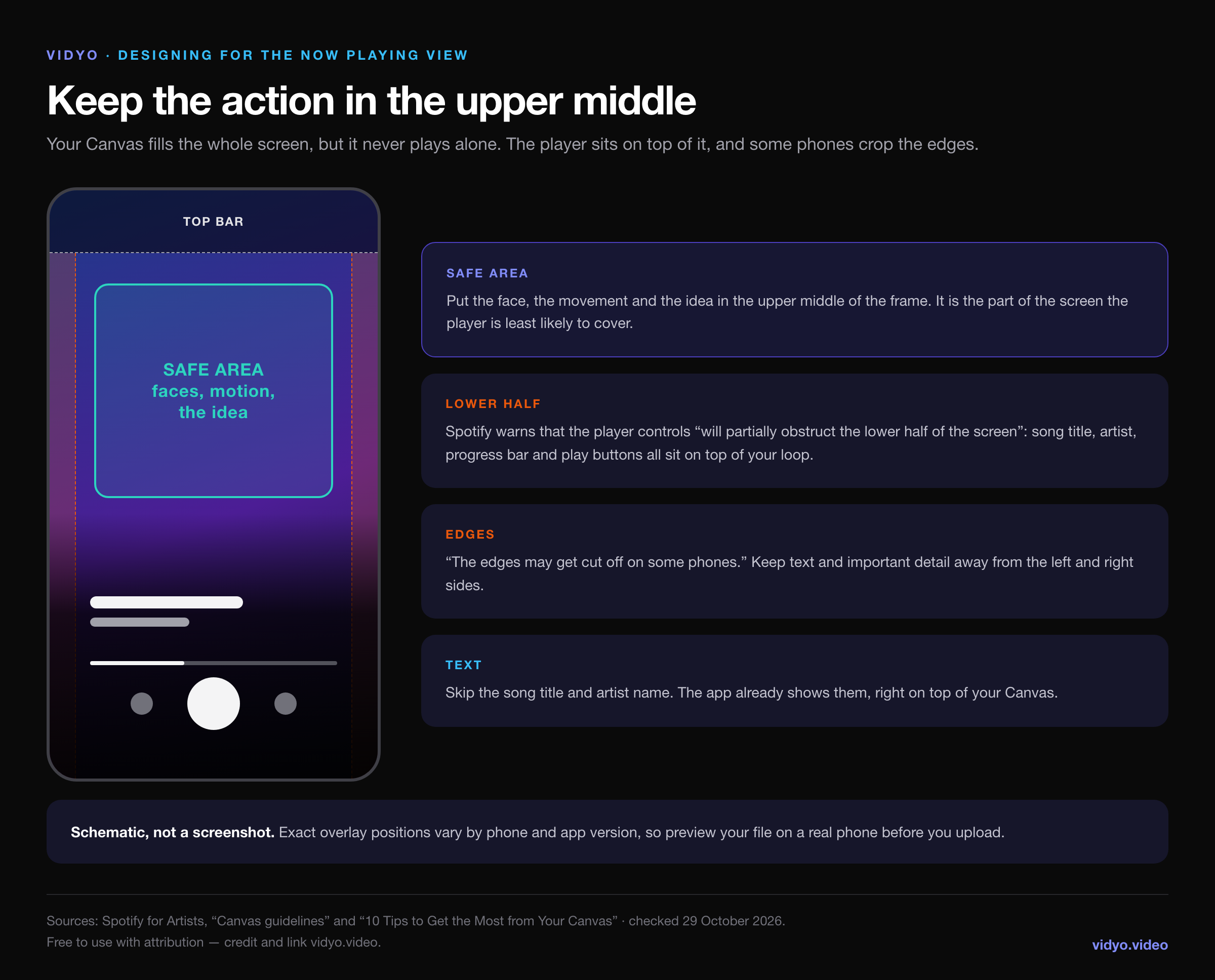
- Put the subject in the upper middle. Faces, hands, movement and anything that tells the story belong above the halfway line and away from the sides.
- Use the lower half for texture. Colour, light, slow movement and backgrounds work there. Detail does not.
- Leave the text out. Spotify suggests "excluding your song and artist name", because the app already shows both, right on top of your Canvas.
- No talking, singing or rapping. A Canvas is 3 to 8 seconds and loops on its own clock, so it "won't sync with the lyrics". Mouthing words looks like a bad dub.
- Avoid rapid cuts and flashing. Spotify warns they "may overwhelm the viewer", and the loop repeats them for the whole song.
Three ways to make it loop
Spotify names three kinds of loop. Choose one before you edit, because each needs different footage.
| Loop type | How Spotify describes it | Best for |
|---|---|---|
| Continuous | "has a satisfying seamless loop" | Animation, 3D, slow camera moves you can plan to end where they started |
| Hard cut | "has clear edit points (they can be artfully disguised)" | Footage that cannot loop, cut on a beat or a flash so the jump feels intended |
| Rebound | "plays your clip forwards, then reverses it (an easy way to get a smooth loop)" | Any slow, steady shot. The quickest way to a clean loop |
Rebound is the one to reach for when you are short on time. Take 4 seconds of a slow shot, play it forwards, then backwards, and you have an 8-second loop with no visible join. This is one we made from a Vidyo teaser with the command in the next section:
Export settings that meet the spec
Whatever you edit in, the settings are the same. Set the project or sequence to 720 × 1280 (or 1080 × 1920) at 30 fps, make the timeline exactly 8 seconds, export as H.264 MP4, and switch audio off. Then check the file's real length before you upload, because some editors add a frame.
If you are comfortable with a terminal, ffmpeg does all of this in one line. We ran each command below on 29 October 2026 and measured the output with ffprobe.
A straight 8-second loop
Scales your clip to cover a 720 × 1280 frame, crops the overflow from the centre, keeps the first 8 seconds and drops the audio:
ffmpeg -t 8 -i input.mp4 \
  -vf "scale=720:1280:force_original_aspect_ratio=increase,crop=720:1280,fps=30" \
  -an -c:v libx264 -crf 18 -preset slow -pix_fmt yuv420p -movflags +faststart \
  canvas-720x1280.mp4
A rebound loop
Takes 4 seconds, plays them forwards and then in reverse, for 8 seconds in total:
ffmpeg -t 4 -i input.mp4 -filter_complex \
  "[0:v]scale=720:1280:force_original_aspect_ratio=increase,crop=720:1280,fps=30,split[f][r];[r]reverse[rv];[f][rv]concat=n=2:v=1:a=0[out]" \
  -map "[out]" -an -c:v libx264 -crf 18 -preset slow -pix_fmt yuv420p -movflags +faststart \
  canvas-rebound.mp4
A still JPG Canvas
Grabs one frame at the 2-second mark and crops it to the same 9:16 frame:
ffmpeg -ss 2 -i input.mp4 -frames:v 1 \
  -vf "scale=720:1280:force_original_aspect_ratio=increase,crop=720:1280" -q:v 2 \
  canvas-still.jpg
Check the file before you upload
ffprobe -v error -select_streams v:0 -count_frames \
  -show_entries stream=width,height,nb_read_frames -show_entries format=duration \
-of compact canvas-720x1280.mp4| File we made | Size (px) | Frames | Length | File size |
|---|---|---|---|---|
| Straight loop, 720p | 720 × 1280 | 240 | 8.000 s | 1.4 MB |
| Straight loop, 1080p | 1080 × 1920 | 240 | 8.000 s | 2.3 MB |
| Rebound loop | 720 × 1280 | 240 | 8.000 s | 0.9 MB |
| Still JPG | 720 × 1280 | 1 | n/a | 0.1 MB |
To make the 1080 × 1920 version, change every 720:1280 in the command to 1080:1920. The source for these tests was a 15-second vertical teaser from Vidyo's showcase.
What a Canvas cannot show
Spotify's Canvas content policy is short, and the rule people break most is about promotion. A Canvas "shouldn't be used to sell anything or be overly promotional", and Spotify "might remove your Canvas" if it is.
- No links or calls to action. "Avoid directing people to any websites or URLs, ticket vendors, and encouraging follows or likes on social media."
- Text must be about this track. No other songs, unrelated albums, social handles, brands (Spotify's logo included), products, discounts, fan experiences, contests or sweepstakes.
- The image comes first. Any text "should support the image or artwork you choose, which should always remain the primary focus".
- Mark it explicit when it needs to be. Spotify asks you to flag a Canvas with profanity, violence or abuse, recreational drug use, sexual behaviour or other sensitive topics, even when the content is otherwise allowed.
A Canvas that breaks Spotify's wider Platform Rules is removed outright.
How to add a Canvas to your track
You upload a Canvas yourself, in Spotify for Artists, track by track. According to Spotify's Adding a Canvas page, you can do it if you are the first main artist on the track, or the main artist on both the track and the release, with an Admin or Editor role on the team.
On the web
- Log in to artists.spotify.com.
- Go to Music.
- Select your track.
- Click Add Canvas and choose your file.
In the Spotify for Artists app
- Open the Spotify for Artists mobile app.
- Tap Music.
- Select your track.
- Tap Canvas and choose your file.
It works for upcoming releases too, so you can have the Canvas in place for release day. You can also swap it whenever you like; Spotify encourages it, and your Canvas view count carries on across changes.
Canvas not showing, or the upload failed?
A Canvas that uploaded fine can still be invisible to you. Spotify's troubleshooting page names four things to check before you touch the file.
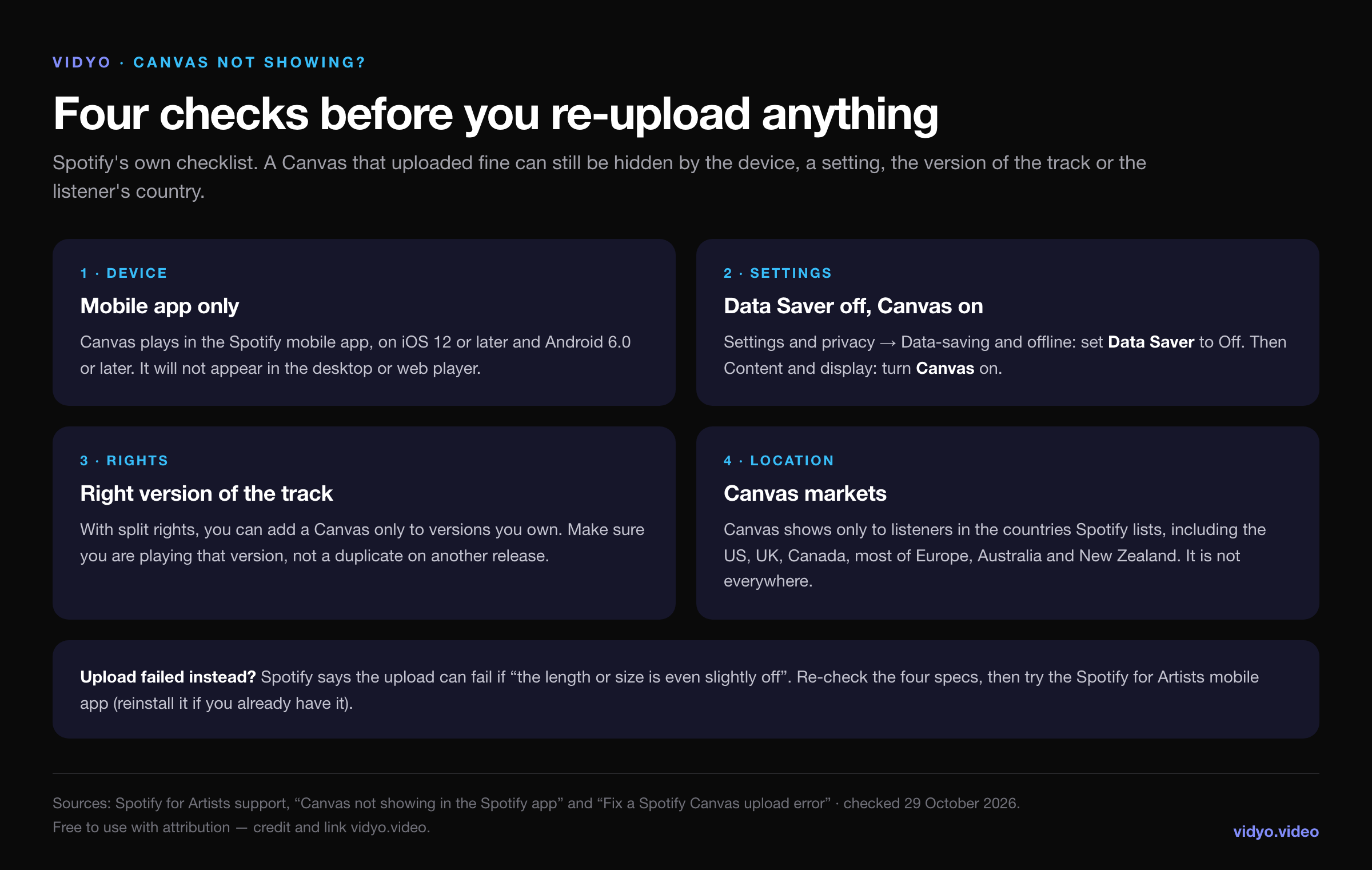
- Device. Canvas plays only in the Spotify mobile app, on iOS 12 or later or Android 6.0 or later. It never appears in the desktop or web player.
- Settings. In the Spotify app, tap your avatar, open Settings and privacy, set Data Saver to Off under Data-saving and offline, and turn Canvas on under Content and display.
- Rights. With split rights, a Canvas can only go on the versions you own. Make sure you are playing your version of the track.
- Location. Canvas shows to listeners in the countries Spotify lists, which include the United States, Canada, the UK, most of Europe, Australia and New Zealand, and many markets in Asia, Africa and Latin America. It is not available everywhere, so check Spotify's list.
If the upload itself failed, the file is almost always the problem. Re-check length, ratio, size and format against the table above, measure the real duration with the ffprobe command, and try the Spotify for Artists mobile app instead of the web. Spotify suggests reinstalling the app if you already have it, and contacting support if the error continues.
Is a Canvas worth the effort?
Spotify thinks so, and it has published numbers. In its Canvas Metrics Guide, Spotify says adding a high-quality Canvas to a track "has increased streams by up to 120% and saves by up to 114%". Those are Spotify's best cases ("up to"), not an average, so treat them as a ceiling.
The more dependable argument is where a Canvas travels:
- Discovery. Spotify says listeners find tracks with a Canvas "by swiping through the visual feeds on Home".
- Instagram Stories. When someone shares your track from Spotify to their Story, your Canvas "will loop in the background of the Story", with a "Play on Spotify" link.
- Measurable. Spotify for Artists counts a Canvas view each time someone opens Now Playing and sees it, up to one view per stream, however long they listen. A track can have more Canvas views than streams, because a stream only counts after 30 seconds.
For an independent release, a Canvas is one of the few visual slots on Spotify that costs nothing to fill. If you already have a music video or teasers, you have the raw material. If you are still deciding whether your single needs visuals at all, our guide to releasing AI music on Spotify covers what Spotify does and does not allow.
Making Canvas loops with Vidyo
Disclosure: Vidyo is our product. Vidyo turns one song into a release kit: a full music video, three vertical teasers, a 1:1 square and a 5-second Spotify Canvas loop at 720 × 1280, 9:16, as an MP4. That loop is cut from the same footage as the video, so your Canvas, teasers and video look like one release. It fits inside Spotify's 3-to-8-second window as it comes out.
If you would rather build your own Canvas, everything you need is above: pick a loop type, keep the subject in the upper middle, export 8 seconds at 720 × 1280, and check it on a phone.